Running an assessment
An assessment matches the evidence in a project to the controls you select, and records what it found. You run it from the project, and results are kept so you can compare them over time.
Before you run one
Section titled “Before you run one”- Upload the evidence you want considered. See Uploading evidence.
- Check the project has AI credit. Assessments use AI to read and match documents. If the project or its organisation has run out of credit, the assessment stops with a message asking your administrator to add credit.
Run an assessment
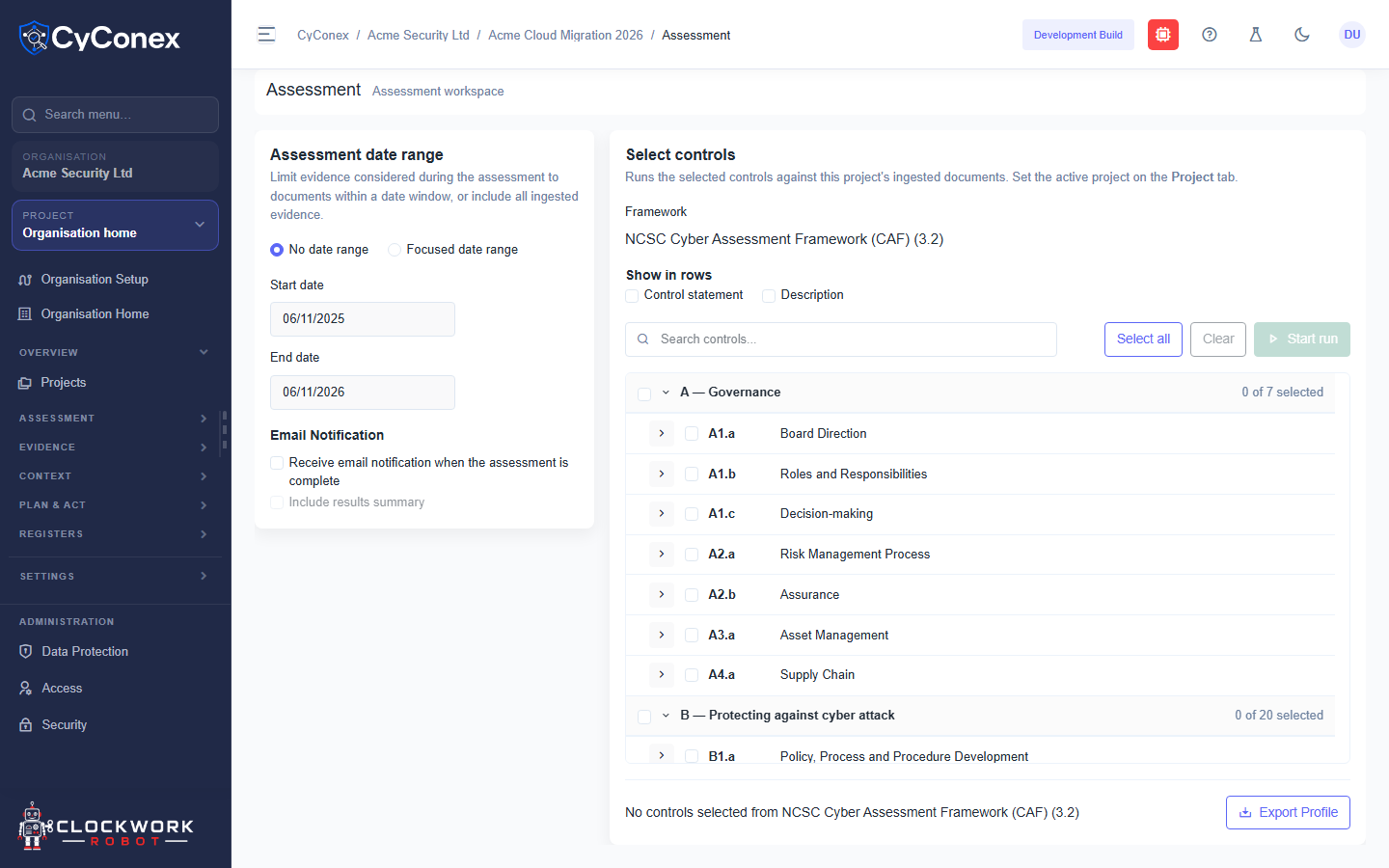
Section titled “Run an assessment”- Open the project, then select Run assessment under Assessment in the sidebar.
- Under Assessment date range, choose No date range to use all evidence, or Focused date range to limit the evidence to a set of dates.
- Choose Email Notification if you want an email when the assessment completes, and Include results summary if you want a summary in the results.
- Under Select controls, choose the controls to assess.
- Start the assessment from the page and wait for it to finish.
Review the results
Section titled “Review the results”Results are listed on the project’s home page under Previous Evidence Assessments, and the project’s Heatmap shows the outcome for each control.